Contents — tap to jump to a section
This document records what Toozkar Systems has set up for QXL International Sdn Bhd, and shows you — step by step, in plain English — how to manage your own email accounts and read your mail on any phone, tablet or computer. No technical background is needed. Every term is explained the first time it appears.
For security, this page contains no passwords, usernames or server addresses that are private to your account. Wherever you see something in square brackets like [your cPanel username], that is a detail Toozkar Systems sends to you separately through a private channel. Never post those details on a public page, in a group chat, or in an email to someone you do not know.
Section 1Handover summary
Below is everything that has been delivered and handed over to QXL International Sdn Bhd.
| Item | Detail | Owner | Renewal date |
|---|---|---|---|
| Domain name | qxlinternational.com | QXL International Sdn Bhd — registered in the name of Tengku Haidar Bin Tengku Ahmad (CEO) | 18 August 2027 |
| Web hosting account | Shared cPanel hosting with ServerFreak Technologies | QXL International Sdn Bhd | 18 August 2027 |
| Control panel | cPanel — the web page where you manage email accounts and files | QXL International Sdn Bhd | Included with hosting |
| Email service | Business email on the qxlinternational.com domain, with webmail access | QXL International Sdn Bhd | Included with hosting |
| SSL certificate | Free AutoSSL certificate — the padlock in the browser address bar | QXL International Sdn Bhd | Renews automatically |
| This guide | Published at guide.qxlinternational.com | Maintained by Toozkar Systems | Reviewed yearly |
The domain qxlinternational.com is registered in the client's own name (Tengku Haidar Bin Tengku Ahmad, as CEO of QXL International Sdn Bhd). QXL International retains full legal ownership of the domain and of the hosting account. Toozkar Systems acts only as your appointed administrator; we do not hold ownership of either asset and will transfer full access on request at any time.
Both the domain and the hosting must be renewed before they expire. If a domain expires, your website and all your email stop working, and the name can be bought by someone else. We recommend adding a calendar reminder for 18 July 2027 — one month before — so there is time to act.
Section 2Who to contact
There are two parties supporting you. In short: ServerFreak looks after the servers, and Toozkar Systems looks after you.
| If this happens… | Contact | How |
|---|---|---|
| You are not sure what to do, or you want us to do it for you | Toozkar Systems | Your usual Toozkar Systems contact |
| You need a new email address created or removed | Toozkar Systems (or do it yourself — see Section 4) | Your usual Toozkar Systems contact |
| You forgot your cPanel password | Toozkar Systems | Your usual Toozkar Systems contact |
| The website or email is completely down | ServerFreak support | help.serverfreak.com |
| Email is slow, bouncing, or being marked as spam | ServerFreak support | help.serverfreak.com |
| Hosting invoice, renewal or upgrade | ServerFreak billing | Client area |
| Domain renewal or transfer | Toozkar Systems first, then ServerFreak | Your usual Toozkar Systems contact |
ServerFreak Technologies is the hosting company that owns and runs the physical server your email and website sit on. Their website is web-hosting.net.my and their support desk is help.serverfreak.com. When you raise a ticket with them, always mention the domain qxlinternational.com so they can find your account.
Section 3Logging in to cPanel
cPanel is simply a web page — a control panel — where you manage your hosting. Think of it as the settings screen for your company's email and website. You reach it in any browser (Chrome, Safari, Edge), on a computer or a phone.
Step by step
Open your web browser and go to:
https://qxlinternational.com/cpanelIf that does not open, try
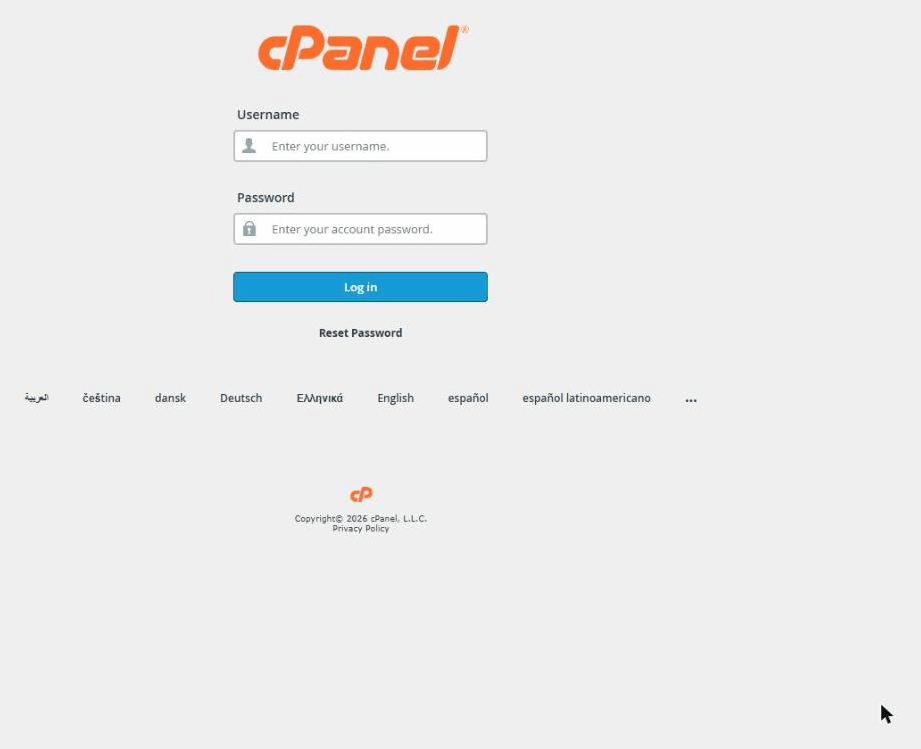
https://qxlinternational.com:2083instead. The:2083is a "door number" on the server — it is normal and safe.You will see the cPanel login screen (Figure 1).
In the Username box, type
[your cPanel username].In the Password box, type
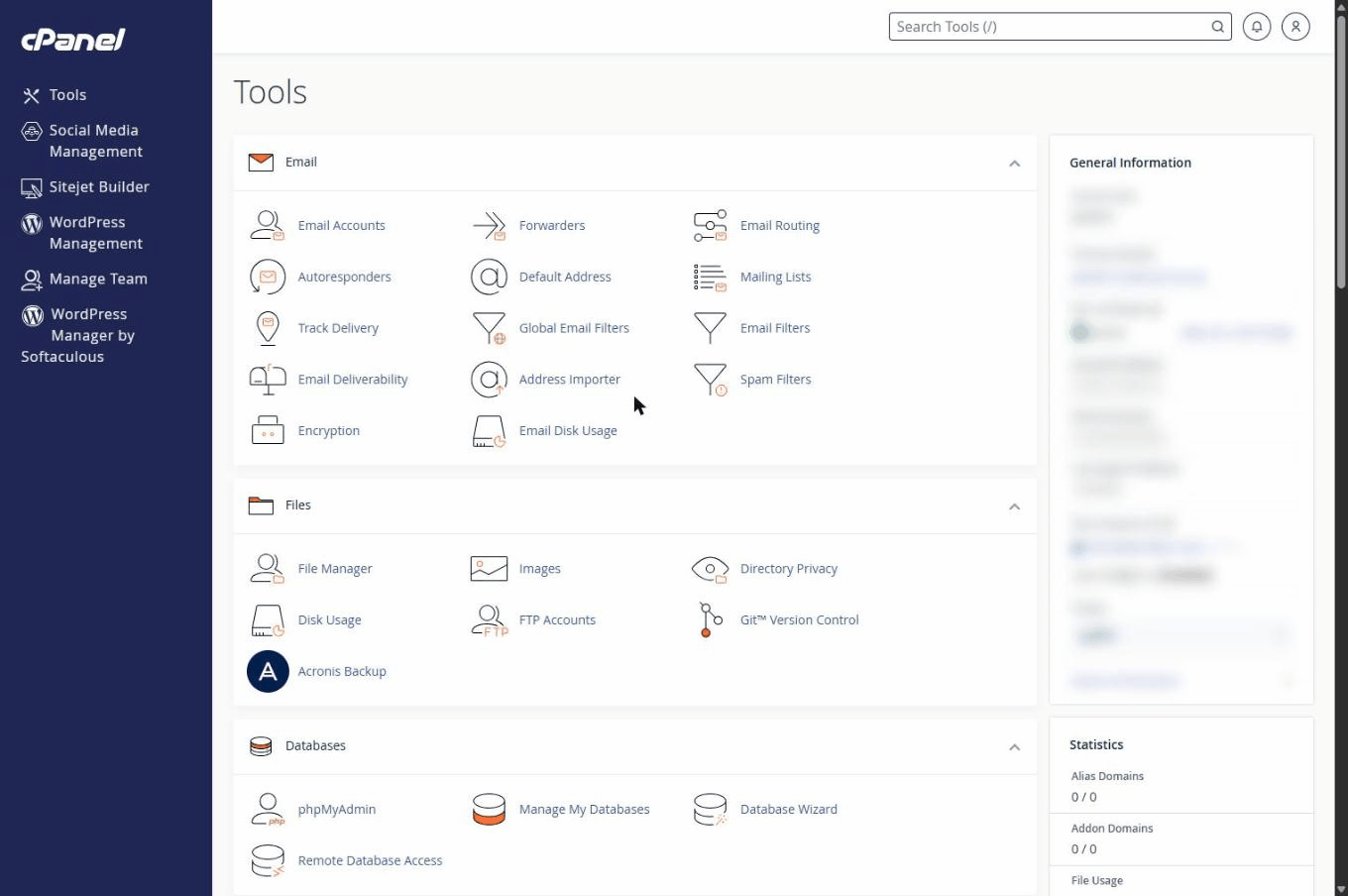
[your cPanel password]. Both were sent to you privately by Toozkar Systems.Click Log in. You will land on the cPanel dashboard (Figure 2).
Finding your way around
The dashboard looks busy, but you only need a small part of it. At the top there is a search box — typing a word such as email filters the icons instantly, which is far quicker than scrolling.
Logging out safely
Click your account name at the top-right of the screen.
Choose Log Out.
If you are on a shared or public computer, close the browser window afterwards as well.
Anyone who later uses that computer would be able to open your cPanel and read, change or delete your company email accounts.
If you forget the password
There is no self-service "forgot password" link on the cPanel login page for shared hosting. Instead:
- Contact Toozkar Systems — in most cases we can reset it for you the same day.
- If we are not available, log in to the ServerFreak client area and open a support ticket asking for a cPanel password reset for
qxlinternational.com. - Never send a password by WhatsApp or ordinary email. Ask for it to be shared through a private channel.
Section 4Creating a new email address
Every staff member can have their own address ending in @qxlinternational.com. You create these yourself in cPanel — you do not need to ask anyone, and there is nothing to install.
Step by step
Log in to cPanel (Section 3).
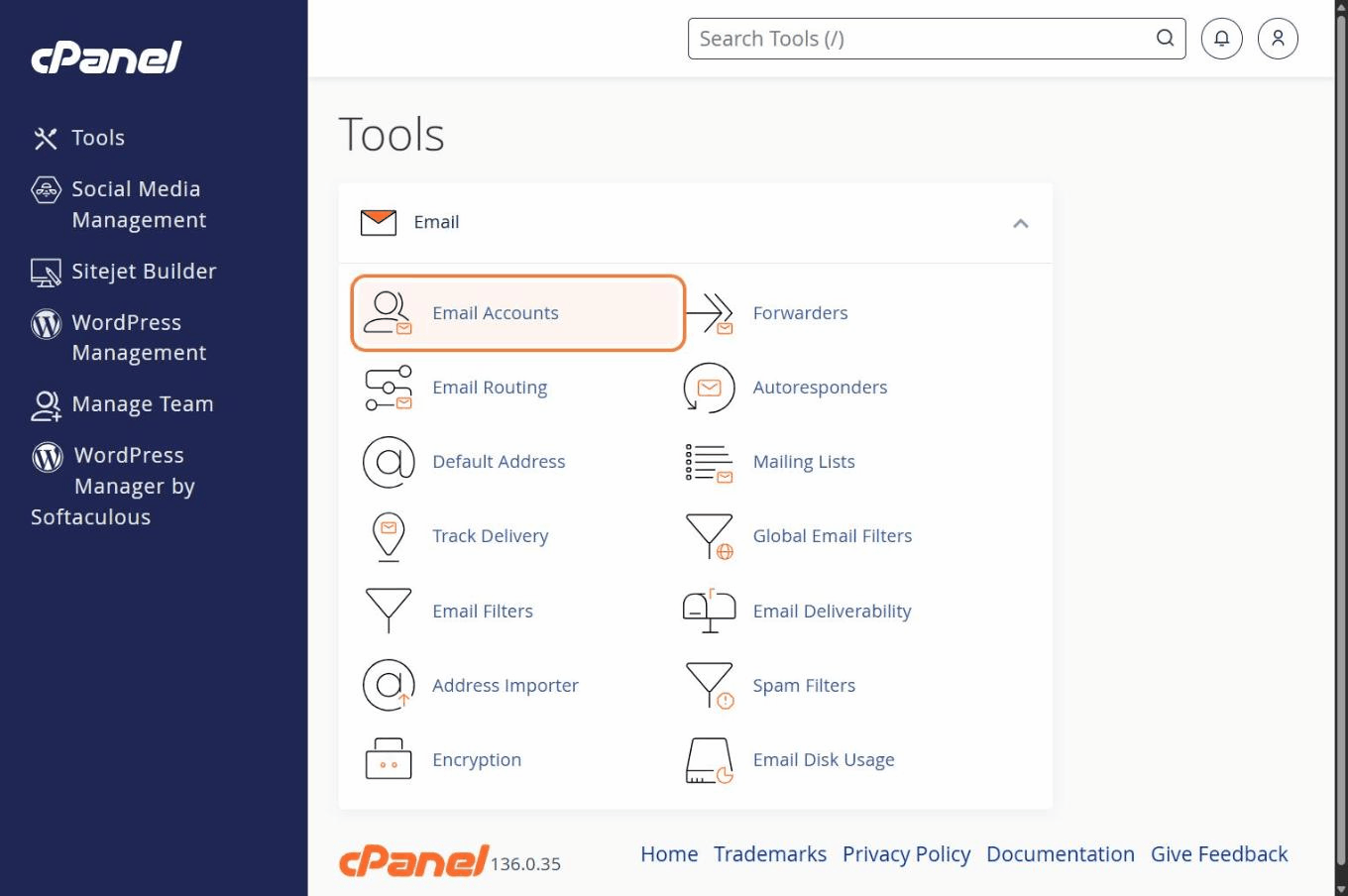
In the Email section, click Email Accounts (Figure 3).
Click the + Create button at the top right.
Domain — leave this as
qxlinternational.com.Username — type the part that goes before the @ sign, for example
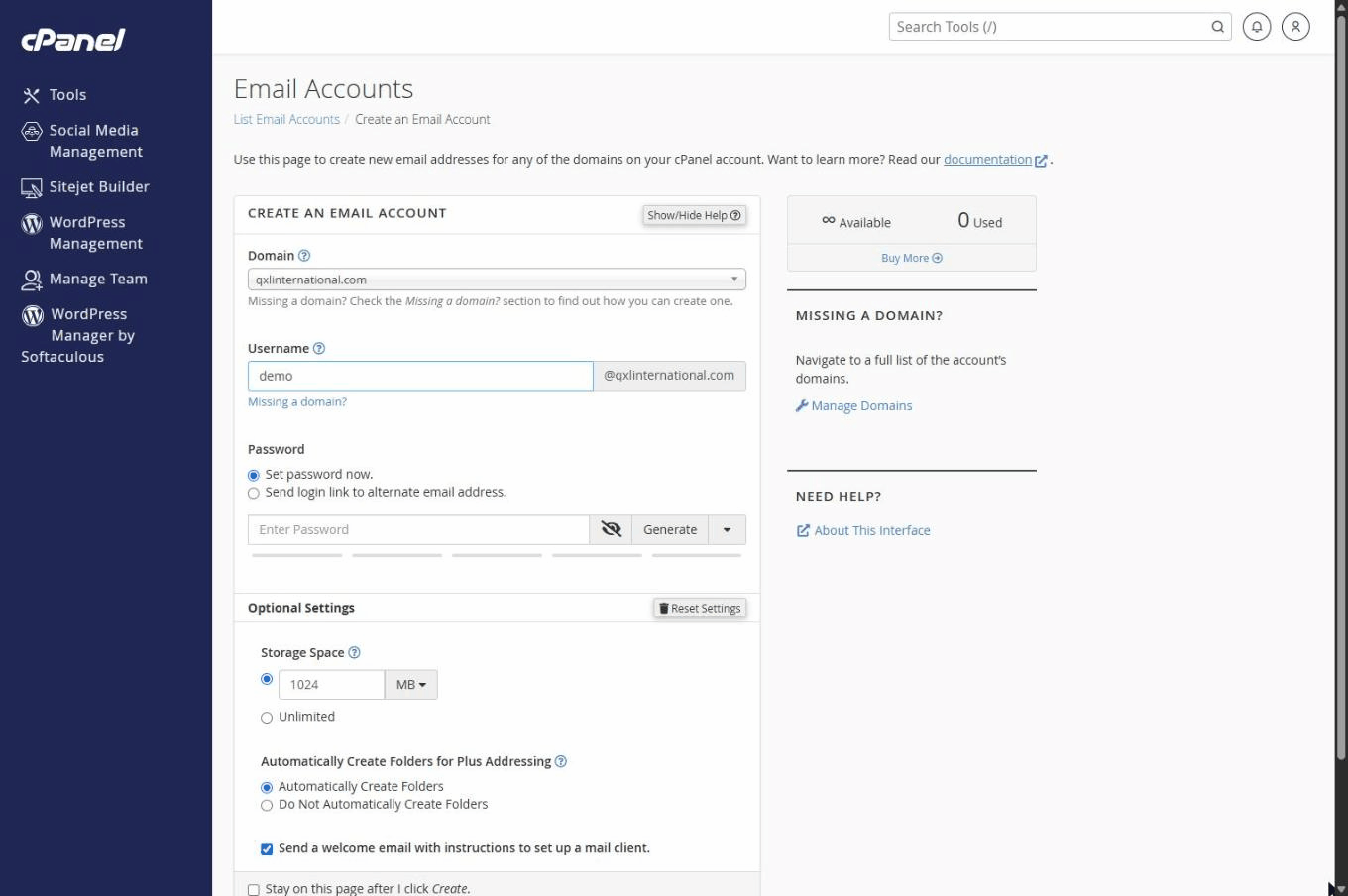
haidarto createhaidar@qxlinternational.com. Use lower-case letters only, with no spaces (Figure 4).Password — click Generate to have cPanel create a strong password for you, then copy it somewhere safe before you leave the page. You will not be shown it again.
Storage Space — this is the mailbox size. 1 GB (type
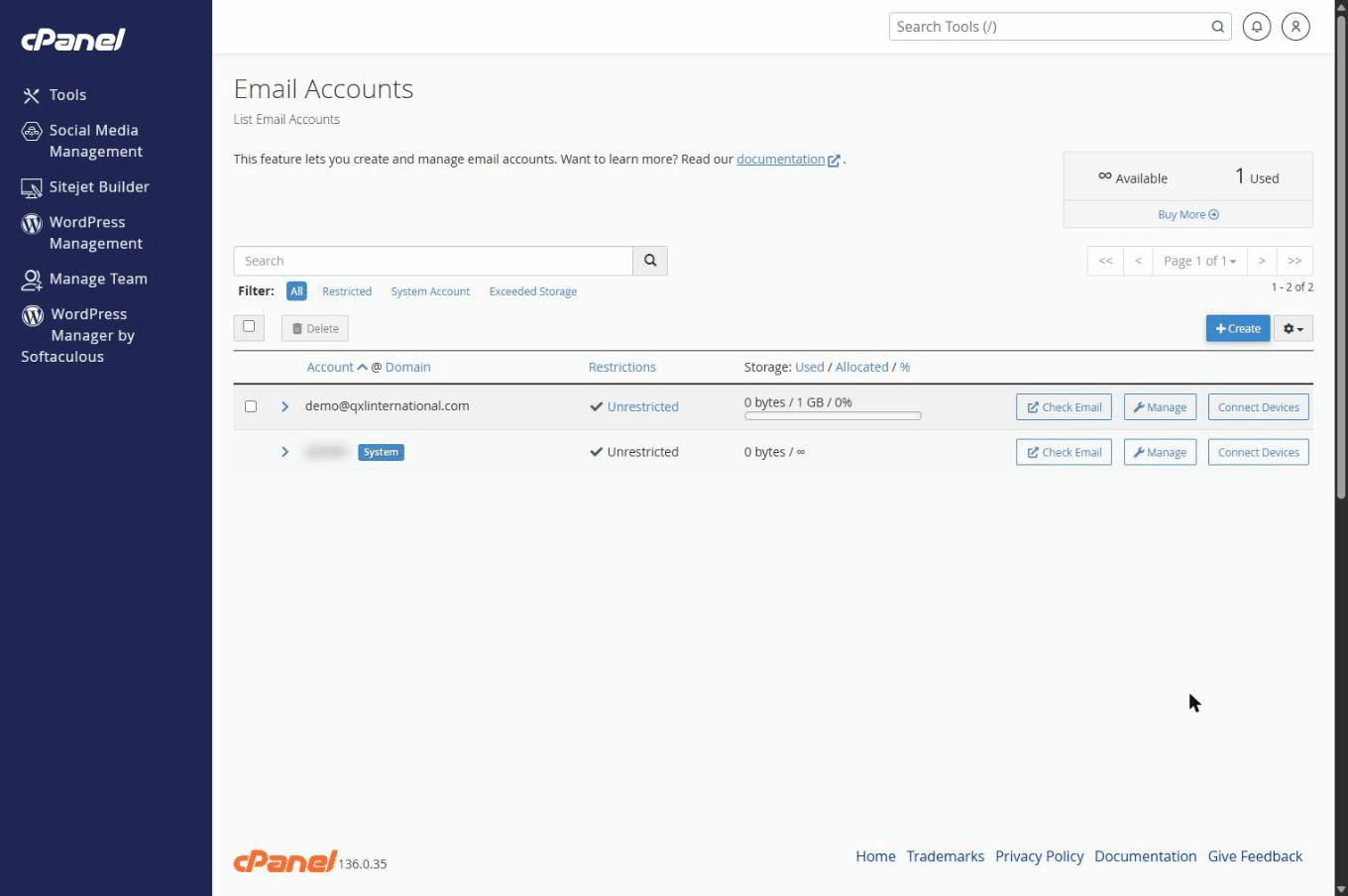
1024MB, as shown in Figure 4) is a sensible starting point for a normal staff member. Avoid choosing Unlimited for everyone, or one mailbox can quietly fill the whole hosting account.Click + Create. The new address appears in the list straight away (Figure 5).
Choosing good names
For people — use the first name, or first name plus surname initial if two people share a first name:
haidar@… aminah@… ahmad.k@…
For roles — use a role address so the mail keeps flowing when someone is on leave or leaves the company:
sales@… info@… accounts@… support@…
Avoid personal nicknames, numbers such as sales2@…, and anything you would be embarrassed to print on a business card.
Changing a password or mailbox size later
Go to Email Accounts and find the address in the list.
Click Manage on that row.
Change the password or the storage space, then click Update Email Settings at the bottom.
Deleting an email address in cPanel permanently deletes every message in that mailbox. When a staff member leaves, the safer approach is to change the password so they can no longer log in, and set up forwarding to a colleague. Ask Toozkar Systems if you would like help doing this. Also never delete the default / system account that carries your cPanel username — it is part of the hosting account itself.
Changing a mailbox password in cPanel does not update the phone or computer that is already using it. Every device set up with that address will start asking for the password until the new one is entered on each of them.
Section 5Using webmail
Webmail lets you read and send mail in a browser, with nothing to install. It is the fastest way to check that a brand-new address works, and it is useful when you are away from your own devices.
Step by step
Go to
https://qxlinternational.com/webmailin any browser.
(https://webmail.qxlinternational.comworks too.)Email Address — type the full address, including the part after the @, for example
haidar@qxlinternational.com. A common mistake is typing only the first part.Password — type the mailbox password you set when creating the account.
Click Log in. If you are asked to choose an application, pick Roundcube (Figure 6).
Send a test message to your own personal address, then reply to it, to confirm that both sending and receiving work.
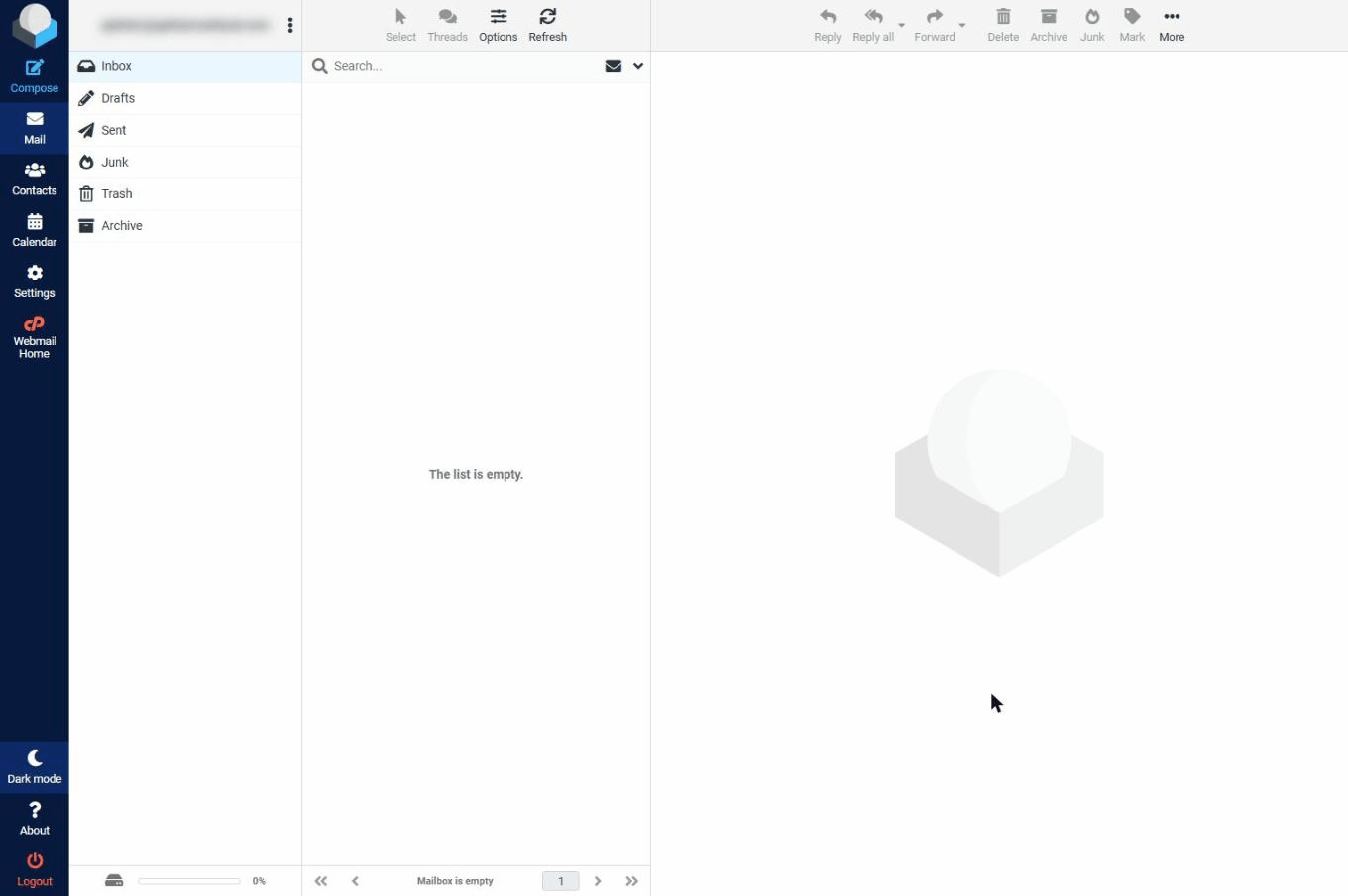
If a new address does not work in webmail, it will not work on a phone either. Always test in webmail first — it rules out the phone settings as the cause.
Section 6Setting up email on your devices
Read the settings box below once, then open only the section for the device in your hand. Each device section is complete on its own — you do not need to read the others.
Your email settings
| Setting | Value |
|---|---|
| Your email address | the full address, e.g. haidar@qxlinternational.com |
| Username | the same full email address (not just the first part) |
| Password | the mailbox password from cPanel |
| Incoming server (IMAP) | mail.qxlinternational.com |
| Incoming port | 993 — security: SSL/TLS |
| Outgoing server (SMTP) | mail.qxlinternational.com |
| Outgoing port | 465 — security: SSL/TLS |
| Outgoing authentication | Required — use the same username and password |
| Incoming port (POP3, only if asked) | 995 — security: SSL/TLS |
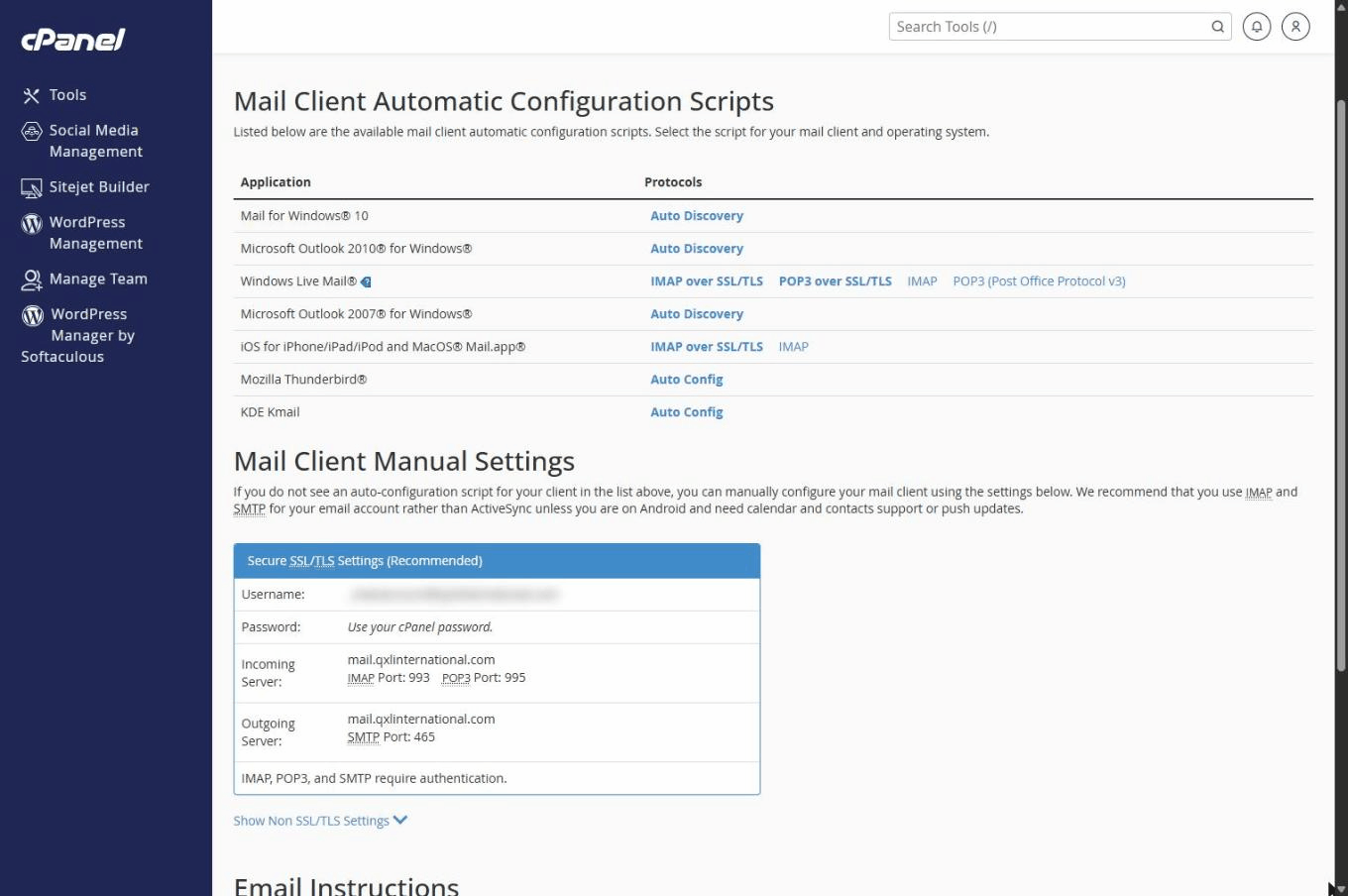
These values have been confirmed against your own hosting account and are shown in Figure 7. If a device ever refuses them, check them again for yourself at any time: cPanel → Email Accounts → Connect Devices on the address you are setting up. That page always shows the live settings, so if it ever disagrees with the table above, the Connect Devices page is right.
IMAP keeps your mail on the server, so your phone, tablet and computer all show the same inbox. Read a message on your laptop and it shows as read on your phone. We recommend IMAP for everyone.
POP3 is the old method: it downloads mail onto one device and often removes it from the server, so your other devices never see it. Only use POP3 if you have a specific reason to.
SMTP is not an alternative to those two — it is the part that sends your mail. Every setup needs both an incoming setting (IMAP) and an outgoing one (SMTP).
SSL/TLS means the connection is encrypted, so nobody on the same Wi-Fi can read your mail as it travels. Always leave it switched on.
Pick your device
6.1 iPhone (Apple Mail)
Open Settings on your iPhone.
Scroll down and tap Apps, then Mail. (On older iOS versions, tap Mail directly in the Settings list.)
Tap Mail Accounts, then Add Account.
At the bottom of the list of providers, tap Other — do not tap iCloud, Google or Outlook.
Tap Add Mail Account and fill in:
- Name — how you want your name to appear to recipients, e.g. Tengku Haidar
- Email —
haidar@qxlinternational.com - Password — your mailbox password
- Description — e.g. QXL Work
Tap Next.
At the top of the next screen, make sure IMAP is selected (not POP).
Under INCOMING MAIL SERVER, enter:
- Host Name —
mail.qxlinternational.com - User Name — your full email address
- Password — your mailbox password
- Host Name —
Under OUTGOING MAIL SERVER, enter exactly the same three values. The user name and password look optional here — they are not. Fill them in, or you will be unable to send.
Tap Next. Verification takes up to a minute. Then tap Save.
Open the Mail app and pull down on the inbox to refresh. Send yourself a test message.
Tap Details to check the certificate name, then Trust only if it refers to your hosting server. If you are unsure, stop and contact Toozkar Systems rather than tapping Trust.
6.2 iPad (Apple Mail)
iPadOS works almost exactly like the iPhone; the screens are just wider, with the settings list on the left and the detail on the right.
Open Settings.
In the left column tap Apps, then Mail. (On older iPadOS versions, tap Mail directly.)
Tap Mail Accounts → Add Account → Other → Add Mail Account.
Enter your Name, Email (the full address), Password and a Description, then tap Next.
Make sure IMAP is selected at the top.
Incoming Mail Server — Host Name
mail.qxlinternational.com, User Name = your full email address, and your password.Outgoing Mail Server — enter the same three values again, including the user name and password.
Tap Next, wait for verification, then tap Save.
Open Mail and send a test message.
If you already set this up on your iPhone, the iPad will still need its own setup — the settings do not copy across on their own. Because both use IMAP, they will show the same inbox once done.
6.3 Windows PC (Outlook)
Open Outlook.
Go to File → Add Account. (If Outlook has never been opened, it asks for an address straight away.)
Type your full email address, e.g.
haidar@qxlinternational.com.Click Advanced options, tick Let me set up my account manually, then click Connect. This step matters — without it Outlook guesses the server and usually gets it wrong.
Choose IMAP as the account type.
Enter the server details:
- Incoming mail — Server
mail.qxlinternational.com, Port993, Encryption method SSL/TLS - Outgoing mail — Server
mail.qxlinternational.com, Port465, Encryption method SSL/TLS
- Incoming mail — Server
Click Next, enter your mailbox password, then click Connect.
When you see "Account successfully added", click Done and send a test message.
Windows 11's built-in Mail app has been retired in favour of the new Outlook, so we recommend Outlook. If you are still using Mail on an older PC, the steps are: Accounts → Add account → Advanced setup → Internet email, then enter the same server names and ports from the table above.
Nine times out of ten the User name has been shortened. It must be the full email address, including @qxlinternational.com.
6.4 Mac (Apple Mail)
Open the Mail app.
In the menu bar, click Mail → Add Account. (Or go to System Settings → Internet Accounts → Add Account.)
Select Other Mail Account… at the bottom of the list, then click Continue.
Enter your Name, your full Email Address and your Password, then click Sign In.
Mail will report that the account name or password could not be verified. This is expected — it simply means Mail could not guess the server. The form expands so you can fill it in yourself.
Complete the expanded form:
- Account Type — IMAP
- User Name — your full email address
- Incoming Mail Server —
mail.qxlinternational.com - Outgoing Mail Server —
mail.qxlinternational.com
Click Sign In again.
Tick Mail on the apps screen, then click Done.
Send a test message to confirm sending works as well as receiving.
If your Mac uses Outlook rather than Apple Mail: Tools → Accounts → + → New Account, type the address, choose IMAP when asked for the provider, then enter the same servers and ports from the settings table above.
Open Mail → Settings → Accounts → Server Settings, and under Outgoing, untick Automatically manage connection settings. Set the port to 465 and tick Use TLS/SSL.
Section 7Good email habits
Passwords
- Use a different password for every mailbox. If one is guessed, the others stay safe.
- Longer beats complicated. A phrase such as KopiTarik-Pagi-2026! is stronger and easier to remember than Qx!7p.
- Never reuse your online banking password for email.
- Let cPanel's Generate button create the password, and store it in your phone's password manager or a locked note.
- Change a password immediately if a staff member leaves or a device is lost.
One person, one mailbox
Avoid sharing a single address between several staff. When something goes wrong there is no way to tell who sent what, and you have to change the password for everyone at once. For a shared inbox such as sales@, ask Toozkar Systems to set up forwarding to each person instead — that keeps individual accountability.
Mailbox size
Each mailbox has a storage limit. As it fills up, cPanel warns you; when it is completely full, new mail is rejected and the sender gets a bounce message — you will not even know they tried. To free space, delete large attachments and empty the Trash and Junk folders, which still count towards the limit. To check usage: cPanel → Email Accounts → look at the bar in each row.
Spam and scams
- No genuine bank, supplier or hosting company will ever email you asking for your password.
- Be suspicious of any message that creates urgency — "your account will be closed today".
- Check the sender's address carefully. Scammers use look-alike domains such as qxl-international.com.
- Never open an unexpected attachment, especially
.zip,.exeor a file that asks you to "enable content". - If an email about a payment or bank detail change looks even slightly odd, telephone the sender on a number you already have before acting.
Leave the system account alone
Your hosting account has a built-in default mailbox that matches your cPanel username. It is not for daily use, but it should not be deleted — it catches mail sent to addresses that do not exist, and some server notices arrive there.
Section 8Troubleshooting
Try the fix in the middle column first. If it does not help, use the last column.
| Symptom | Most likely fix | If that fails |
|---|---|---|
| Cannot log in to cPanel | Check the address is qxlinternational.com/cpanel and that the username has no extra space at the start or end (a common problem when pasting). |
Ask Toozkar Systems for a password reset. |
| Phone keeps asking for the mailbox password | The user name must be the full email address, not just the first part. Re-enter it in both the incoming and the outgoing sections. | Confirm the password works in webmail. If it does, delete the account from the phone and add it again. |
| Emails will not send | Check the outgoing server is mail.qxlinternational.com, port 465, SSL/TLS on, and that authentication is switched on with the same username and password. |
Some cafés, hotels and mobile networks block mail ports. Try another Wi-Fi or mobile data; if it works there, the network was the cause. |
| Emails are not arriving | Look in the Junk / Spam folder. Then check webmail — if the message is there but not on your phone, the phone is the problem, not the server. | Ask the sender whether they received a bounce message and what it said, then send that wording to ServerFreak support. |
| "Mailbox is full" or mail bouncing back | Empty the Trash and Junk folders and delete large attachments; or raise the mailbox quota in cPanel → Email Accounts → Manage. | Ask Toozkar Systems to review the overall hosting storage. |
| Certificate or "cannot verify server identity" warning | Confirm you typed the server name exactly as mail.qxlinternational.com, with no typo. |
Do not tap Trust if you are unsure. Contact Toozkar Systems. |
| Mail read on the laptop still shows unread on the phone | One device is set up as POP3 instead of IMAP. Remove that account and add it again choosing IMAP. | Ask Toozkar Systems to check both devices. |
| Website and email both down at the same time | This usually points to the server or an expired domain, not your settings. | Raise a ticket at help.serverfreak.com quoting qxlinternational.com, and tell Toozkar Systems. |
It helps enormously if you can say: which email address, which device, the exact wording of the error message (a photo of the screen is perfect), and when it last worked.
Section 9Glossary
| Term | In plain English |
|---|---|
| Domain | Your address on the internet — qxlinternational.com. You rent it yearly; you do not buy it once. |
| Hosting | The rented space on a server where your website files and email live, so they are available day and night. |
| cPanel | The web page where you manage your hosting — creating email accounts, checking storage, and so on. |
| Webmail | Reading and sending your email inside a browser, with nothing installed on the device. |
| IMAP | The recommended way of connecting a device. Mail stays on the server, so all your devices show the same inbox. |
| POP3 | The older method. Mail is downloaded to one device and often removed from the server, so other devices miss it. |
| SMTP | The part that sends your outgoing mail. Every setup needs it alongside IMAP. |
| SSL / TLS | Encryption. It scrambles your mail while it travels so others on the same network cannot read it. Always leave it on. |
| DNS | The internet's phone book — it turns a name like qxlinternational.com into the number of the server that answers for it. |
| MX record | The DNS entry that says which server should receive email for your domain. If it is wrong, no mail arrives. |
| Mailbox quota | The storage limit for one email account. When it is reached, new mail is rejected. |
| Port | A numbered "door" on a server, e.g. 993 or 465. Different services use different doors. |
| Bounce | An automatic reply saying a message could not be delivered, and usually why. |
Section 10Handover sign-off
By signing below, QXL International Sdn Bhd confirms that the items listed in Section 1 have been delivered, that access credentials have been received through a private channel, and that this guide has been provided.
Handover of: domain registration, cPanel hosting account and email service for qxlinternational.com
Delivered by: Toozkar Systems · Date: 21 August 2026
This guide is maintained by Toozkar Systems and is reviewed at least once a year, or whenever your hosting setup changes. If you spot a step that no longer matches what you see on screen, please tell us and we will update it.